About this free AI tool
TKCORE AI lists this as a free tool in the directory: overview, use cases, a short tutorial, and FAQs—plus links to related tools and blog guides.
TKCORE Text Genie is a free AI text generator workspace at
/tools/t/ai-writer—built for searches like text genie, Text Genie AI, and
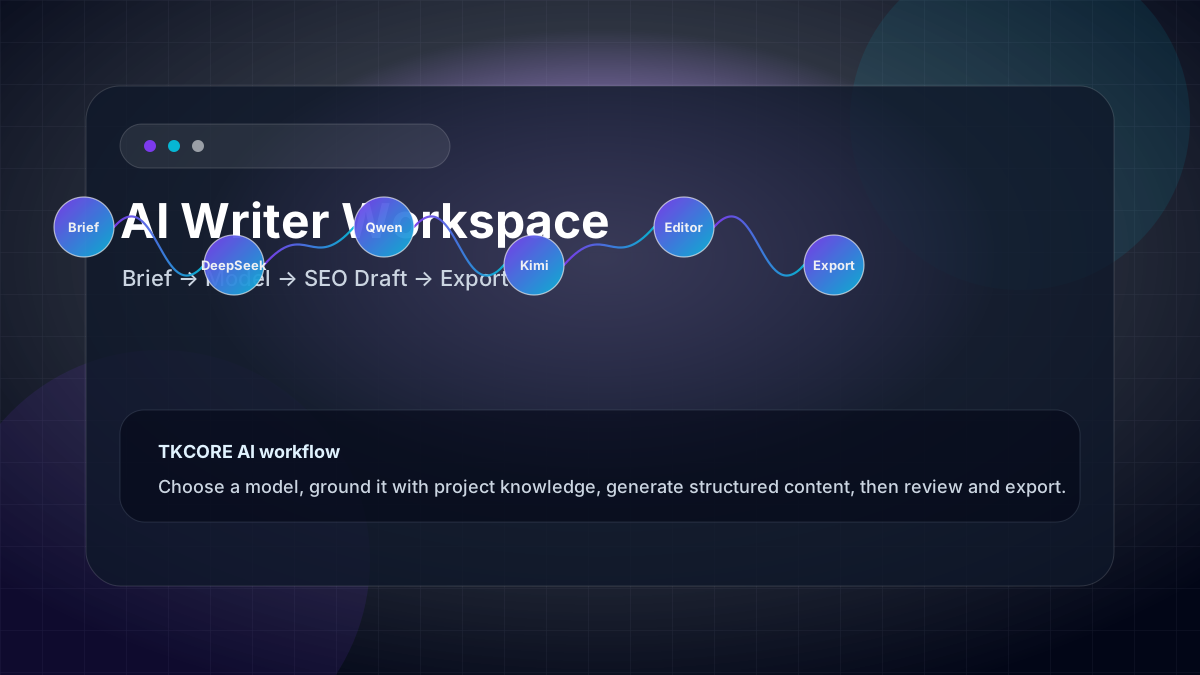
free text genie. Paste what you want written (or a structured brief), pick a model such as DeepSeek, Qwen, Kimi, or TKCORE Pro,
and generate a draft you can preview, edit, and export as plain text, Word, or PDF.
Many visitors arrive looking for Toolsaday Text Genie or a quick single-box generator. TKCORE Text Genie starts with the same job—turn a prompt into usable copy—then adds a multi-model workspace, Advanced tone/length/keyword fields, project knowledge files, Web search / Deep thinking tools, and one-click exports so teams can reuse the same URL every week. Read our Text Genie comparison guide for a same-prompt walkthrough.
Who Text Genie is for: marketers, founders, bloggers, and creators who want fast AI text generation and optional structure when the deliverable is an article, landing page, or client export—not only a single chat paragraph.
What you get on this page: a prompt/brief composer, model picker, Advanced controls, live word count, formatted preview, and exports. Attach brand rules via TKCORE Projects knowledge files when you outgrow one-off prompts.
Features
- Structured brief composer — main outline box plus Advanced options: target length, voice, POV, keywords, and optional tables.
- Multi-model picker — compare tone, reasoning depth, and speed across DeepSeek, Qwen, Kimi, GLM, MiniMax, and TKCORE models.
- Live word count — track draft size in the result panel before you export or paste elsewhere.
- One-click exports — copy, download .txt, Word (.doc), or PDF from the same workspace.
- Knowledge & tools rail — attach project knowledge files; optional Web search and Deep thinking when your plan allows.
- Try sample prompts — spin up a realistic brief instantly when you are exploring the UI.
- Project continuity — pair with TKCORE Projects so brand rules and source notes persist across campaigns.
- SEO-oriented controls — emphasize target keywords, set narrative stance, and request tabular comparison sections for buyer guides.
Why teams choose TKCORE Text Genie over a basic generator
- Beat blank-page syndrome — turn bullets, transcripts, or rough notes into a structured first draft in minutes.
- SEO-ready structure — specify keywords, length, and tone so headings and sections align with search intent (always fact-check before publish).
- Repurpose once, publish many — one webinar outline can become a blog post, email sequence, and social snippets with small brief tweaks.
- Model A/B testing — run the same brief on a fast model vs a reasoning model and keep the version that fits your voice.
- Fewer handoffs — stakeholders receive Word or PDF exports instead of messy chat screenshots.
When to use it
TKCORE Text Genie fits any workflow where you type what you want written and need a strong first draft fast— from quick marketing blurbs to structured SEO articles. Below are the most common jobs teams run on this page every week.
- SEO blog posts & guides — H2 outline, intro hook, FAQ block, and internal-link placeholders from one brief.
- Landing & product pages — benefits, proof points, and CTA sections with a consistent professional tone.
- Email & lifecycle copy — nurture sequences, launch announcements, and onboarding messages (pair with Email writer for short-form).
- Documentation & help centers — procedural articles with optional tables for comparison matrices.
- Agency deliverables — share one TKCORE URL with clients; the form encodes defaults so revisions stay on-brand.
- Thought leadership — founder essays, industry trend pieces, and conference recap posts with a defined voice.
- Content repurposing — transform webinar notes, podcast transcripts, or sales decks into publishable articles.
Problems, value, and outcomes
Problems it helps solve: “I know the outline but staring at a blank doc costs hours,” or “ChatGPT gave me paragraphs I still have to reformat for Word and SEO.” Value: one URL, repeatable fields, editable HTML output, and exports—less tab sprawl than juggling a chat thread, Google Docs, and a PDF tool.
Generic chat tools excel at open-ended Q&A but struggle with production discipline: length drifts, tone shifts mid-article, and every new session forgets your brand rules. A dedicated long-form workspace encodes those constraints in the UI so the model starts closer to what you would brief a human writer.
Human review still matters: treat every draft as a strong starting point. Verify facts, add original examples, and align with your brand and legal guidelines before publishing—especially for YMYL topics (health, finance, legal).
How TKCORE compares
Choosing a text genie tool is about speed and what happens after the first paragraph. Here is how TKCORE Text Genie compares to Toolsaday Text Genie and generic chat for the same writing job.
| Capability | TKCORE Text Genie | Toolsaday Text Genie | Generic chat |
|---|---|---|---|
| Primary UX | Prompt/brief + Advanced fields + export | Single prompt box + Result tab | Open-ended thread |
| Multi-model choice | DeepSeek, Qwen, Kimi, GLM, more | Toolsaday model stack | One vendor picker |
| Tone, length, SEO keywords | Built-in Advanced panel | Tone/language on prompt page | Repeat in every message |
| Knowledge / brand files | Project knowledge uploads | Limited / site-dependent | Custom GPTs or paste |
| Word / PDF export | One-click from workspace | Copy from Result tab | Copy-paste + reformat |
| Best for | Repeatable drafts + client exports | Fast one-shot text genie runs | Q&A and brainstorming |
Bottom line: if you searched text genie for a fast generator, you are in the right place. TKCORE Text Genie matches that intent on page one, then scales to weekly production with models, files, and exports—without switching products.
What teams say
“We stopped rebuilding the same SEO brief in chat. One TKCORE URL, knowledge files for each client, and exports straight to Word—our editors cut first-draft time by more than half.”
“I run the same product launch brief through two models and pick the tone that fits. The word count in the preview alone saves me from under-delivering to clients.”
“Repurposing webinar notes used to mean three tabs and a messy Google Doc. Now one brief becomes a blog draft, then I jump to Blog writer for a shorter version—all in TKCORE.”
These are representative workflows from teams using TKCORE writing tools. Results vary by brief quality, model choice, and editing time—always review before publish.
How it works
How to use Text Genie (step-by-step)
- Write your brief in the main box: topic, audience, desired length, must-include points, and anything to avoid. Use Try sample if you want a starter outline.
- Choose language & model — fast models for rough drafts; stronger models for complex structure or nuanced tone.
- Open Advanced options — set target length, voice, narrative stance, keywords to emphasize, and whether to include a table section.
- Click Generate — keep the tab open while the model streams; the formatted draft appears in the Export panel.
- Edit & export — refine in the preview, then copy or download Word/PDF for stakeholders.
Tips for better drafts (like pro prompt guides)
- Be specific: “B2B SaaS onboarding email for trial users, 180 words, friendly, one CTA” beats “write marketing email.”
- Front-load constraints: put SEO terms, forbidden claims, and examples at the top of the brief.
- Iterate in place: tweak Advanced fields and regenerate instead of fighting one giant chat message.
- Attach knowledge for recurring clients—upload positioning docs or past winners so the model stays consistent.
- Compare models: run identical briefs on a fast vs reasoning model when tone or structure matters.
Example outcome
Example workflow: a content lead drafts a 1,200-word SEO article on “multi-model AI for content teams,” sets keywords in Advanced, generates with Qwen, edits headings in the preview, exports Word for the client, then uses Text to Image for hero art and Blog writer for a shorter companion post— all linked through one TKCORE project space.
Agency case study: a three-person content studio serves six retainer clients. Each client has a TKCORE project with knowledge files (tone guide, product glossary, compliance notes). Writers open AI Writer, select the client project, paste the weekly brief, and export .doc files into the client’s review folder. Revision rounds dropped because headings, length, and forbidden claims are encoded in the brief—not re-explained in email.
Solo creator case study: a newsletter author repurposes one recorded interview per month. They paste transcript bullets into the brief, set tone to “conversational expert,” length to medium, and generate a 900-word article. They edit for personal anecdotes, export PDF for Patreon subscribers, and reuse sections in Content generator for social snippets.
Examples
Brief example
Write a 1,100-word SEO guide for startup marketers on repurposing one webinar into five assets. Tone: practical, not hype. Include H2s, a checklist, and a soft CTA to try TKCORE Projects.
Expected output
A structured article with title, intro, scannable sections, keyword-aware headings, bullet checklist, and closing CTA—ready for human edit and export.
Landing page brief
Draft a product landing page for an AI writing workspace: hero, three benefits, social-proof placeholder, pricing teaser, FAQ (4 questions). Audience: marketing managers. Tone: confident, clear.
Reusable templates
SEO article template
Write a [word count] [content type] for [audience] targeting keyword “[keyword]”. Include H2s: [list]. Tone: [tone]. Must include: [facts/examples]. Avoid: [claims]. End with [CTA].
Repurpose template
Turn these source notes into [format]: [paste bullets]. Keep voice [tone], length [range], and highlight [angle]. Add [number] actionable takeaways.
Editor checklist
Verify statistics, add one original anecdote, tighten intro hook, check keyword in H1 and first 100 words, fix brand terms, add internal links, run plagiarism check.
FAQ
- What is Text Genie?
- Text Genie is a popular name for AI text generators that turn a prompt into marketing copy, emails, or articles. On TKCORE, Text Genie is this free workspace at /tools/t/ai-writer—type what you want written, generate, edit, and export.
- Is TKCORE Text Genie the same as Toolsaday Text Genie?
- No—they are different products. Toolsaday Text Genie lives on toolsaday.com/writing/text-genie with a single prompt box. TKCORE Text Genie is our multi-model workspace with Advanced fields, knowledge files, and Word/PDF export. See our comparison blog for a same-prompt test.
- Is Text Genie free?
- Yes—you can use this Text Genie page in the browser as a free TKCORE tool. Sign-in and model limits follow your account plan when generation is enabled on your deployment.
- Is TKCORE Text Genie free to use?
- The workspace is listed as a free tool in the TKCORE directory. You can compose, generate, and export from the page; API usage may follow your account plan and connected model limits when signed in.
- Do I need an account?
- You can read this page and explore the UI. Sign in is required when your deployment enables authenticated generate calls—same pattern as other TKCORE writing tools.
- How is this different from ToolBaz or a generic chat?
- TKCORE Text Genie keeps prompt, length, tone, POV, keywords, and export in one form—like a production text genie, not a disposable chat thread. ToolBaz-style pages emphasize quick generation; TKCORE adds knowledge files and multi-model choice for repeat workflows.
- Can I export to Word or PDF?
- Yes. After generation, use Copy, .txt, Word (.doc), or PDF from the Export toolbar when output is available. This page is the TKCORE AI writer export PDF workflow—no separate tool URL required.
- What is AI writer with files?
- Attach project knowledge files (PDFs, docs, notes) from the tools rail so drafts respect your brand facts, glossaries, and tone guides. Combine with TKCORE Projects for team-wide file context on every run.
- Is the generated content unique?
- Output depends on your brief and model. Treat drafts as original starting points; for academic or commercial use, review and run your preferred plagiarism checker.
- Can I use drafts commercially?
- Yes for typical marketing and business content, subject to your TKCORE terms and human review for accuracy, compliance, and brand voice.
- Which model should I pick?
- Use a fast model for brainstorming; use stronger reasoning or creative models when structure, nuance, or long coherence matters. Compare two runs on the same brief.
- Does it support SEO keywords?
- Yes—use the “Terms to emphasize” field in Advanced options plus a clear search intent in your brief. Always edit for natural language and factual accuracy.
- How long should my brief be?
- Most strong drafts come from briefs of 50–300 words: topic, audience, length, tone, must-include points, and anything to avoid. Longer briefs help for technical or YMYL topics.
- Can teams share the same workflow?
- Yes. Share the /tools/t/ai-writer URL and standardize brief templates. Use TKCORE Projects so knowledge files and brand rules apply for every teammate.